


WiFi Assistant – Home Screen
4.312.00 Reviews
App Specs
- Version
- 1.0.1
- Updated On
- License
- Free
- Downloads
- 50,000+
- Developer
- PT. Radjago Aplikasi Indonesia
- Categories
- Personalization
- Platform
- Android
Screenshots
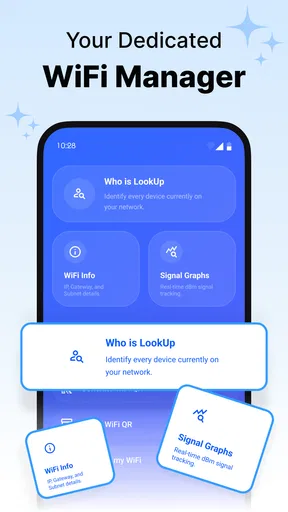
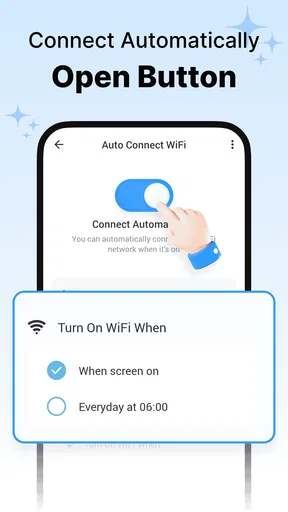
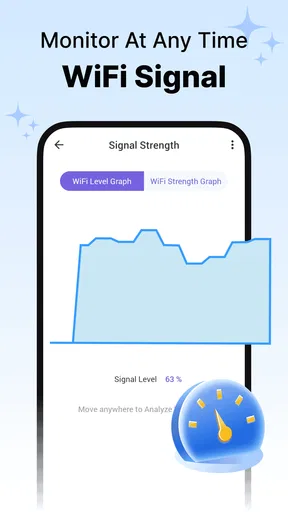

 Analysis by AppCompare
Ever find yourself playing the game of "Where's the WiFi" as you move around your house? Well, you're not alone! That's where WiFi Assistant – Home Screen comes into play. I've been exploring this nifty app, and let me tell you, it's like having a smart little helper in your pocket. So, what's the scoop on this app? Let me break it down for you.
When a WiFi helper meets real-world setup
The first thing I’d do with a home-screen WiFi assistant is treat it as a convenient control point, not a cure for every connection problem. A phone can only help with the network it can see and the controls it can access. If your signal is poor in one room, a shortcut or assistant may make checking easier, but it cannot move the router or fix a weak broadband service. That distinction matters: the app is most useful when the inconvenience is managing or checking a connection, rather than a fault in the network itself.
WiFi Assistant – Home Screen is a free personalization app from PT. Radjago Aplikasi Indonesia. It has a 4.3 average from 129 ratings, and 50K+ installs. Its audience rating is Everyone. Those figures make it a modestly established option rather than an unknown experiment, but they don’t tell me whether it will suit every phone or home setup. I’d judge it by whether its home-screen approach fits the way you already use WiFi.
Small checks before relying on it
Before making any assistant part of your daily routine, I’d check the basics: confirm the phone is connected to the network you expect, make sure WiFi is enabled, and see whether the phone’s own settings can find the network. Then try the app’s main function in a simple situation, such as checking your connection while standing near the router. This gives you a useful baseline before you interpret a slow page or a weak signal as an app issue.
Home-screen tools are most helpful when they reduce repeated steps. If you have to unlock your phone, hunt through menus, and remember which network you meant to choose, a direct point of access can be a genuine improvement. But a widget or shortcut only earns its space if you use it often. I’d keep it visible for a few days, notice whether I reach for it naturally, and remove it if opening the regular WiFi settings is just as quick.
One practical trade-off is that a quick control can make it easier to change networks without thinking through what else depends on the current connection. Before switching, consider whether you’re in the middle of a call, upload, or other activity that could be interrupted. For a short check, that extra pause is worthwhile; for routine browsing, the phone’s existing connection may already be doing the job.
Getting Started with WiFi Magic
First things first, downloading WiFi Assistant – Home Screen is a breeze. Available on both Android and iOS, it's a lightweight addition to your phone's toolkit. Once installed, you're greeted with a clean and intuitive interface. No unnecessary fluff, just straight to the point—exactly how I like my apps.
Worth Reading Before You Choose

EA SPORTS FC Mobile 26 Is a Bigger Football Game, but It Takes Time

Flipboard Shows What News Apps Must Do Beyond the Feed

Switching to Android Auto Means Rethinking Your Driving Routine

Google Calendar Makes a Crowded Week Easier to Manage

Ludo King Makes the Most of the Minutes Between Plans

Baby Panda World Brings Quick Play to Modern Phones, but Its Game Library Feels Busy
The app's primary function is to make managing your WiFi connections as smooth as possible. You can easily switch between networks, monitor your connection strength, and even get suggestions for better networks in your vicinity. It’s like having a WiFi whisperer guiding you to the best spots!
Features That Stand Out
One of the features I found particularly useful is the automatic connection to the strongest network. Imagine walking from your living room to the kitchen and seamlessly switching to the best available network without lifting a finger. That's some next-level convenience right there!
Another cool feature is the data usage tracker. It keeps a close eye on how much data you're consuming over WiFi, which is perfect if you're on a limited plan. Knowing where your data is going can help you avoid those dreaded overage charges.
And, oh, let's not forget the customization options! You can set up widgets on your home screen for quick access. It's like having a personal WiFi control center right at your fingertips.
Making the shortcut useful day to day
A home-screen control is especially handy in a shared home, where people move between rooms and need a quick way to check which network the phone is using. I’d use it before a video call from a different room, for example: check the connection first, then decide whether to stay put or move closer to the router. That small habit can prevent a last-minute scramble without pretending that an app can guarantee a stable call.
For someone with several saved networks, the key question is not simply whether a tool can switch connections, but whether it makes the choice clearer. I’d avoid changing networks just because another one appears available; a familiar, stable connection can be more useful than a stronger-looking alternative that has no internet access. A quick check is most valuable when it helps you make a deliberate choice, not when it encourages constant switching.
Compared with the usual alternative—opening the phone’s built-in WiFi settings—an assistant is worthwhile mainly when its home-screen access saves you repeated taps or makes a common action easier to remember. The system settings remain the better place for deeper troubleshooting and less-frequent changes. I wouldn’t install a personalization app solely to replace those settings if I rarely manage networks; its value depends on whether convenient access solves a real daily annoyance.
Living with WiFi Assistant
So, what's it like using this app every day? In one word: seamless. Whether I'm working from home or just streaming my favorite shows, my connection stays rock solid. No more buffering, no more dropouts—just smooth sailing all the way.
Plus, the app doesn’t bombard you with ads or constant notifications. It stays quietly in the background, doing its thing without demanding your constant attention. I appreciate that kind of app etiquette!
If you're like me and have a bunch of smart devices connected to your network, this app is a lifesaver. It helps ensure everything stays connected without a hitch, from smart speakers to home security cameras.
Recovering when something goes wrong
When a connection seems stuck, I’d work through the simplest checks before blaming the assistant: confirm WiFi is on, check whether other devices can use the same network, and see whether the phone reconnects after moving closer to the router. If other devices also struggle, the issue is more likely to involve the router or internet service than a home-screen tool. If only one phone is affected, checking its network selection and reconnecting through the phone’s normal settings is a sensible next step.
There’s also a difference between a strong signal and a working internet connection. A phone may remain connected to a router even when the router has lost its internet connection, so a signal indicator alone doesn’t settle the question. I find it useful to test a familiar webpage or app before switching networks repeatedly. That simple distinction can save time and avoid treating a WiFi assistant as though it controls the provider’s service.
If a shortcut stops being convenient, remove it and use the ordinary settings while you work out what changed. Then add it back only if it still saves effort. I wouldn’t keep tapping a control that produces an unexpected result; pausing to verify the active network is safer, especially if the phone is handling a call or a time-sensitive task.
Who will get the most from it
I can see the appeal for someone who often checks or changes WiFi from the home screen, moves between areas with different signal quality, or simply wants network controls to be easier to reach. It may also suit a less technical family member who benefits from a clear shortcut instead of navigating several phone menus. The best case is a repeated, small inconvenience that a quick access point can actually reduce.
I’d skip it if you rarely change networks, already find your phone’s WiFi panel easy to use, or expect it to repair dead zones and unreliable broadband. It is also not the right substitute for router placement changes or network troubleshooting when several devices are affected. In those situations, the router’s own controls, the phone’s built-in settings, or help from your internet provider are more appropriate tools.
The app is listed as version 1.0.1 and requires Android 8.0 or later. If you’re considering it for a particular phone, checking compatibility before building it into your routine is a sensible first step. I’d also test the feature you actually want—such as quick access from the home screen—rather than assuming that every workflow will feel equally useful on every device.
Final Thoughts
Overall, WiFi Assistant – Home Screen is a must-have for anyone who wants to take control of their WiFi experience. It’s simple, effective, and just makes life easier. Whether you're a tech novice or a seasoned pro, there's something here for everyone.
So, if you're tired of playing hide and seek with your WiFi signal, give this app a try. You might just find it's the trusty sidekick your phone has been missing. Happy surfing!
Pros
- Easy to use interface for quick access.
- Connects seamlessly to known networks.
- Saves mobile data by auto-switching.
- Customizable settings for power users.
- Minimal impact on battery life.
Cons
- Limited to specific WiFi network types.
- Occasional disconnections reported.
- Interface lacks advanced analytics.
- No support for VPN integration.
- Ads can be intrusive at times.
FAQs for WiFi Assistant – Home Screen
What is WiFi Assistant – Home Screen and what does it do?
WiFi Assistant – Home Screen is an app designed to optimize your device’s WiFi connectivity. It helps you manage connections by automatically switching to the best available network, enhancing speed and reliability. Additionally, it provides shortcuts and widgets for quick access to your most used networks right from the home screen.
Is WiFi Assistant – Home Screen compatible with all devices?
WiFi Assistant – Home Screen is designed for both Android and iOS devices, but compatibility can vary based on specific device models and operating system versions. It’s recommended to check the app requirements on the download page to ensure it’s suitable for your particular device.
How does WiFi Assistant – Home Screen improve WiFi connectivity?
The app improves WiFi connectivity by automatically identifying and connecting to the strongest available signal. It helps prevent dropped connections and maintains stable internet access by switching between networks seamlessly. This is particularly useful in environments with multiple available networks.
Are there any privacy concerns when using WiFi Assistant – Home Screen?
WiFi Assistant – Home Screen requires access to your device’s network settings and location to function effectively. The app claims to adhere to privacy standards, but it’s crucial to review its privacy policy to understand how your data is handled and ensure you’re comfortable with the permissions it requests.
Does WiFi Assistant – Home Screen consume a lot of battery?
WiFi Assistant – Home Screen is designed to be energy efficient, but any app that continuously monitors and manages network connections can have some impact on battery life. It’s advisable to monitor your battery usage and adjust settings within the app to optimize performance and minimize power consumption.


